VTube-LASER Point Locator - Locate Space Object Endpoints and Center Points Using a Probe
The Point Locator control enables users to locate endpoints or center points in space relative to any target space object, or to move the endpoints or center points of the space object to new locations in space.
Capability 1: Import models with holes in VTube-STEP, convert them to Space Object CIRCLES, then locate the holes around the measured tube with the Point Locator.
Watch the video to see how to import a model with holes, then find the center points of imported Space Object circles.
Animation to be added here |
Video to be added here |
Capability 2: Manually enter nominal point locations in the Space Object control, then locate those points around the measured tube with the probe in the measured-aligned coordinate system.
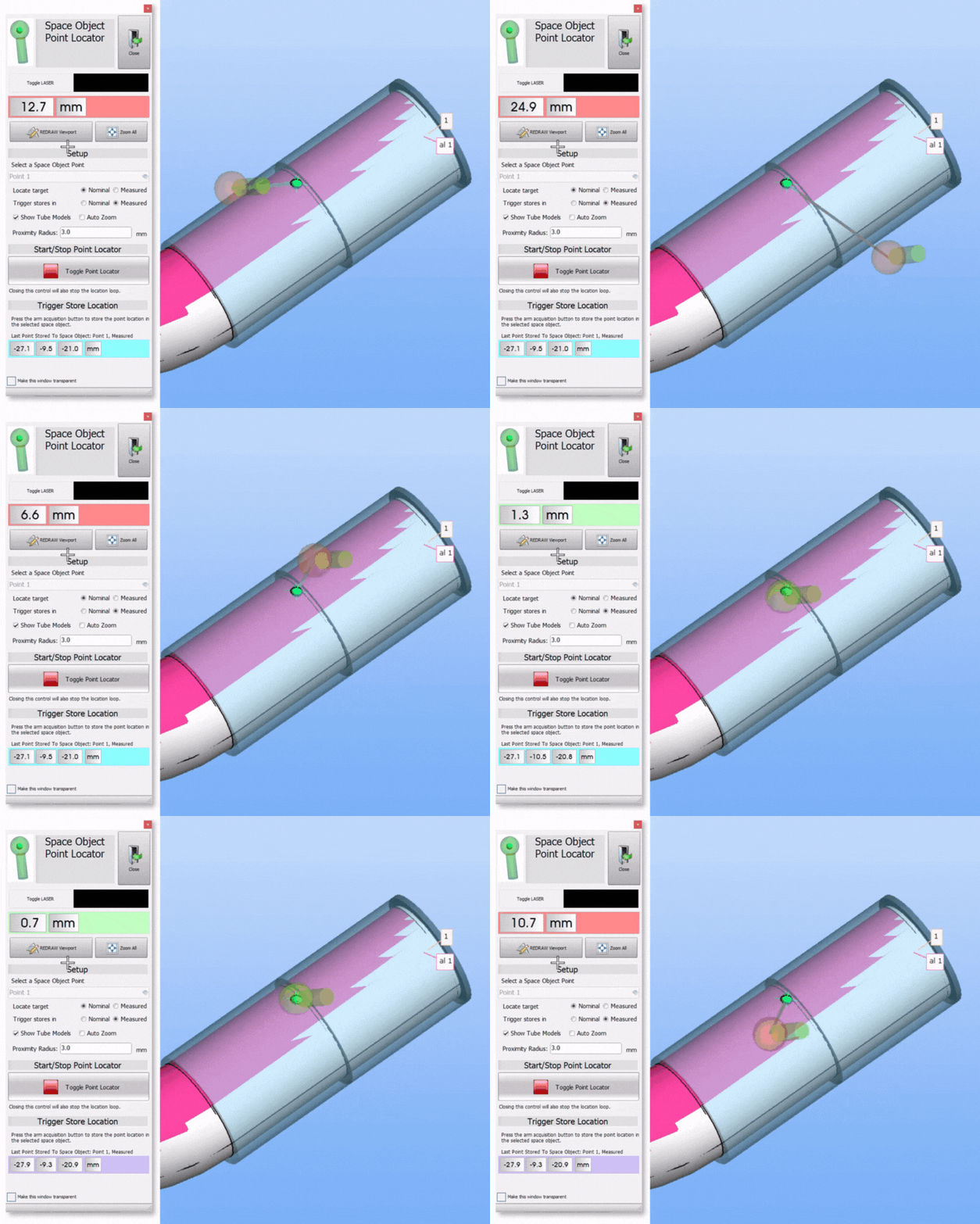
Steps for creating Space Object POINTS and measuring them with the Point Locator:
|
1) Enter the nominal tube from the print or 3D model |
|
|
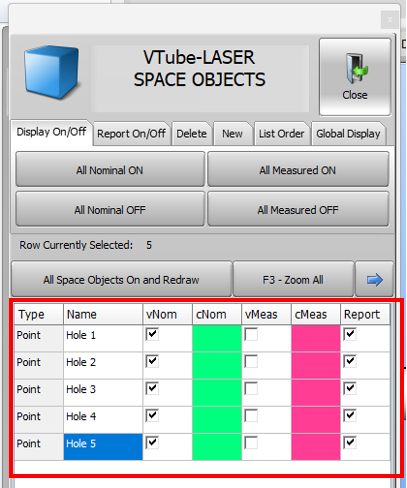
2) Load the Space Object Control |
|
|
3) Insert a Space Object point into the control for each hole |
|
|
4) Label each hole with a unique name |
|
|
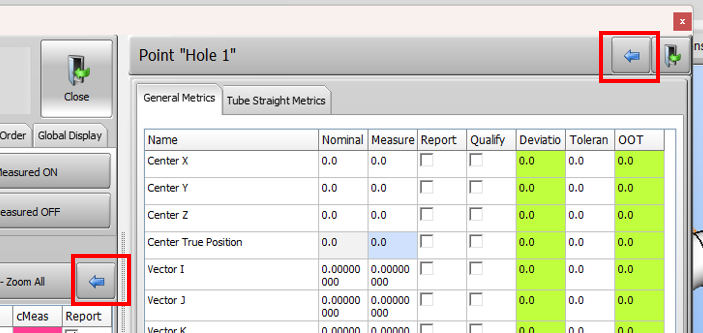
5) Expand the control |
|
|
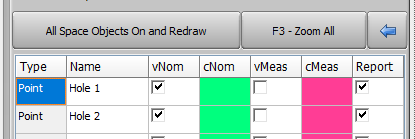
6) Select the first hold in the grid on the left |
|
|
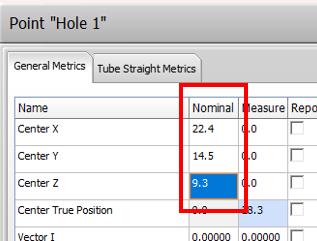
7) Enter the X,Y, and Z values from the print in the nominal cells |
|
|
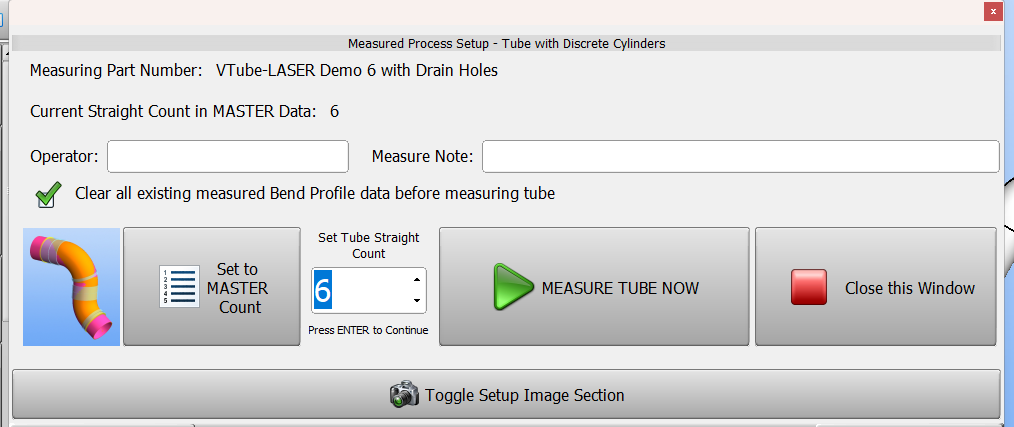
8) Measure the tube |
|
|
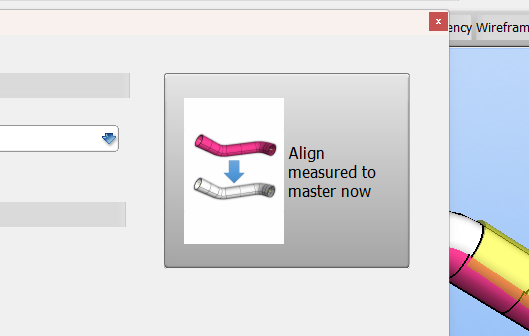
9) Align the tube |
|
|
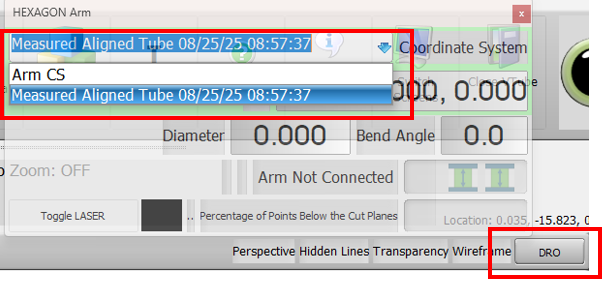
10) Switch to the most recent Measured Aligned CS in the DRO |
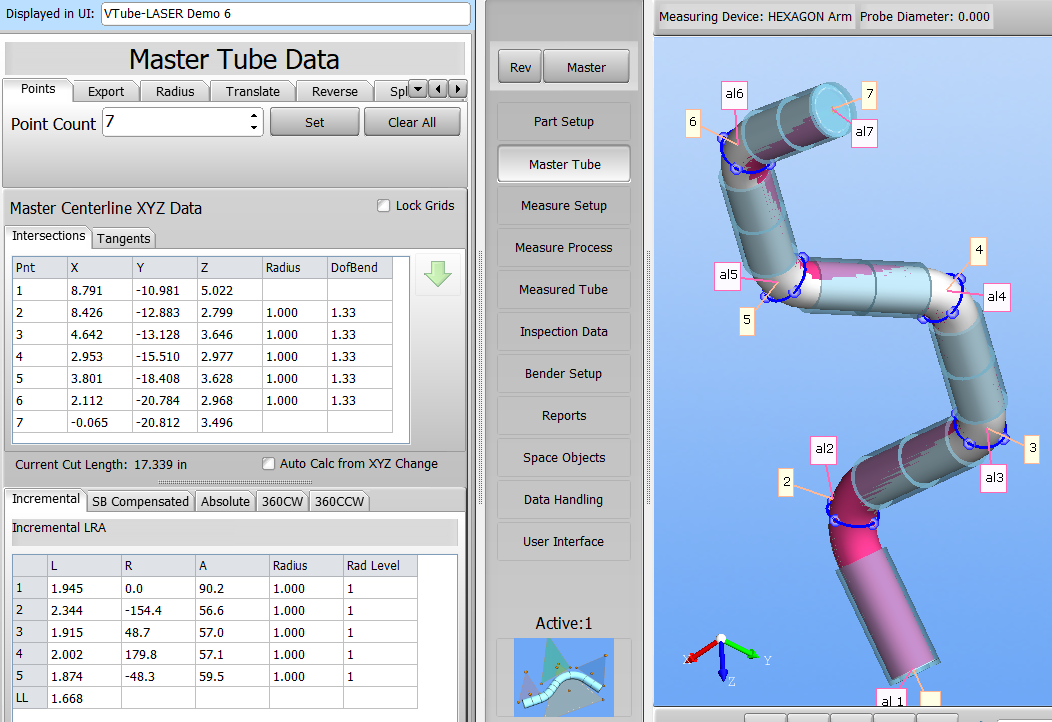
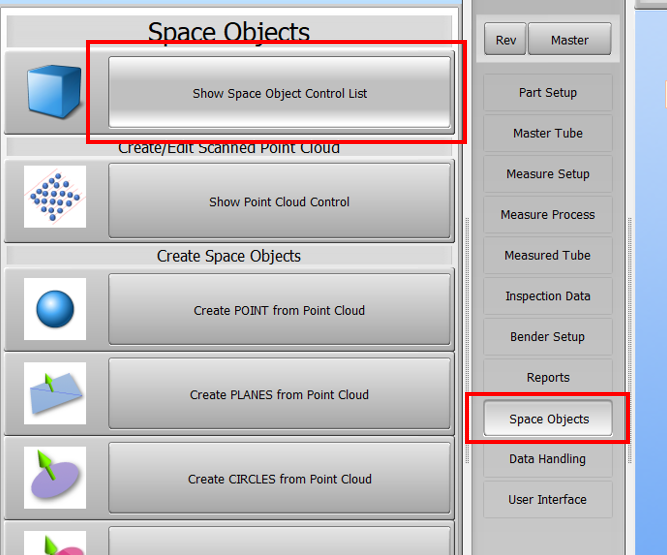
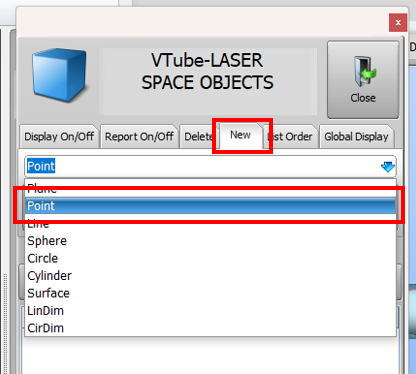
|
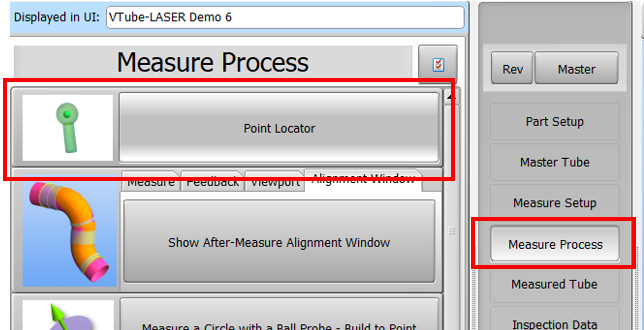
11) Go to Measure Process: Point Locator |
|
|
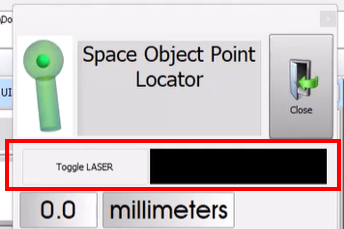
12) Turn the LASER off if it is on (make sure the bar is black) |
|
|
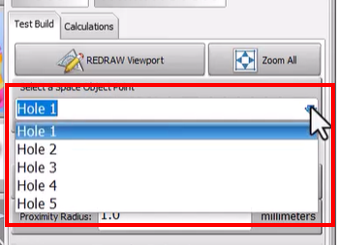
13) Choose the point you intend to locate in the dropdown box |
|
|
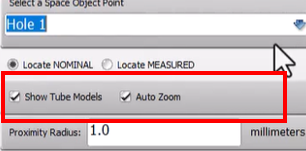
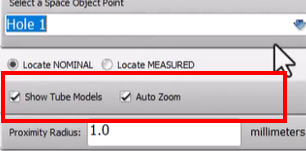
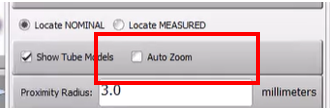
14) Turn Tube Models ON |
|
|
15) Auto Zoom can be turned ON or OFF |
|
|
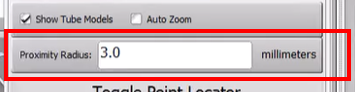
16) Set Proximity Radius |
|
|
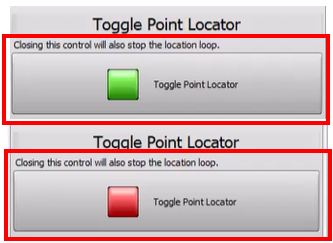
17) Toggle the Point Locator. When the red box is RED, the Point Locator is ON |
|
|
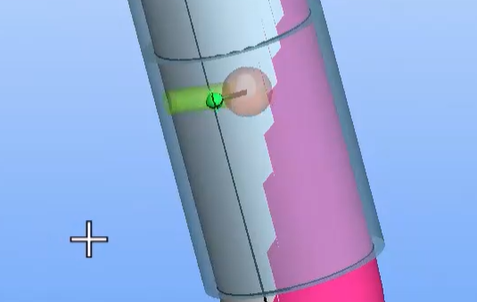
18) Orbit the part in the viewport so that the tube and image match. This will make it easier to locate the point |
|
|
19) Turn OFF Auto Zoom and Zoom in manually to get close in the viewport |
|
|
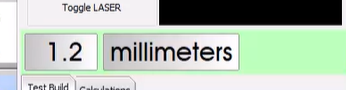
20) Get within the allowed Proximity Radius so the color in the viewport box turns green |
|
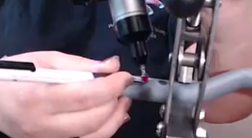
21) Mark the hole with a pen or marker |
|
22) Go to the next hole by toggling the locator OFF and then ON for the next hole. Repeat steps 13-21 |
Capability 3: Move Space Object endpoints and center points anywhere in space around the arm using the probe.
Follow the steps in the video to see how to move a Space Object point in real-time.